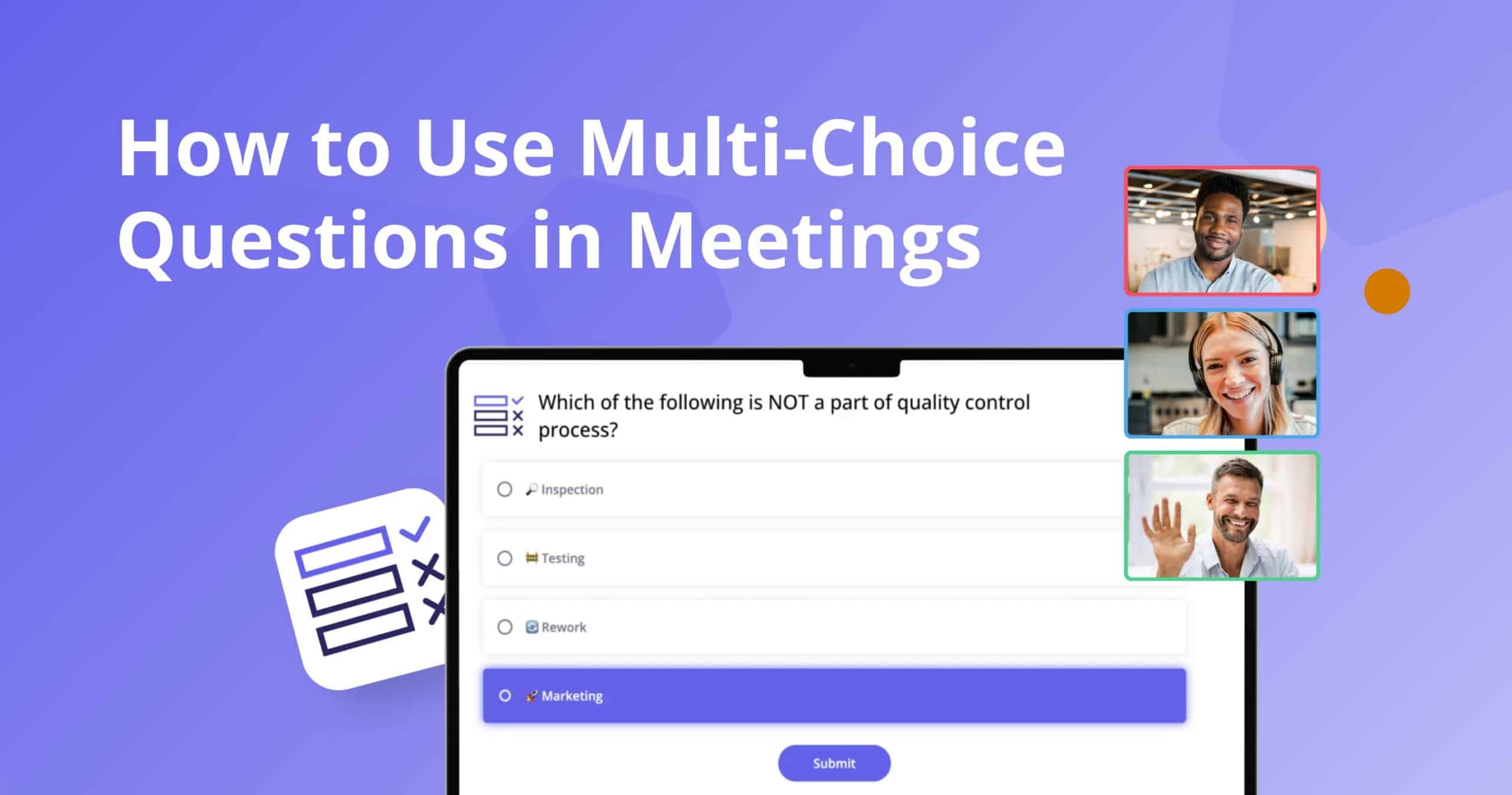
With the Beekast Interactive Survey activity, you can ask your audience a question, collect their responses instantly, and watch the results appear live on screen as a histogram, pie chart, or donut chart.
In this guide, you’ll learn how to set up a Beekast survey from scratch, use it across different session types, and apply best practices that make your polls genuinely useful — not just decorative.
What is an Interactive Survey?
An interactive survey is a live polling activity embedded directly into your presentation that lets participants vote in real time from their own devices. Unlike a static form you send after a meeting, an interactive survey captures the room’s opinion in the moment — while you’re still together and can act on the results.
For example, a trainer opening a leadership workshop might launch a quick survey asking participants to rate their current confidence in giving feedback. The results appear instantly, giving the trainer a real read on the room before they’ve introduced a single concept.
Why Use Beekast for Interactive Surveys?
There are plenty of tools that let you build a form. Beekast’s Survey activity is built specifically to work inside your live session — whether you’re in a meeting room, running a virtual classroom, or presenting at a company event. Here’s what sets it apart:
- Real-time results: responses appear the moment participants submit them, so you see trends form as your audience votes — no waiting, no export, no delay.
- Visual formats that communicate: display results as histograms, pie charts, or donut charts — formats that make patterns immediately obvious to everyone in the room.
- Deeper audience engagement: participants move from passive listeners to active contributors. Giving someone a voice — even a single vote — significantly raises their investment in the session.
- Adaptive facilitation: survey results help you adjust your content on the fly. If 70% of your team says they’re unfamiliar with a concept, you can slow down and go deeper right then.
- Seamless integrations: Beekast works alongside Zoom, Microsoft Teams, Google Meet, Google Slides, and PowerPoint, so the survey fits into the tools your team already uses.
- No app required for participants: attendees join via a simple link or QR code from any device. There’s no download or login barrier standing between them and their vote.
How to Set Up an Interactive Survey in Beekast
Setting up a survey in Beekast takes just a few minutes. Here’s how to do it:
- Log in to your Beekast account and open the session where you want to add the survey. If you’re starting fresh, create a new session and name it.
- In the session editor, click “Add an activity” and select “Survey” from the list of interactive activities.
- Write your survey question. Be specific and keep it to one clear topic. For example: “How familiar are you with our new onboarding process?”
- Add your answer options. Beekast’s Survey activity supports multiple choice responses, so add between two and five answers that cover the range of opinions you want to capture.
- Choose your display format. Select a histogram, pie chart, or donut chart depending on how you want to present the results to your audience.
- Launch your session and share the join link or QR code with participants. When you reach the survey slide, activate it — participants vote from their phones or laptops, and results populate your screen in real time.
3 Ways to Use the Beekast Survey Activity
Here are effective ways to use interactive surveys in your meetings and training sessions.
1. Gather Audience Opinions and Spark Discussion
Use a survey at the start or middle of a meeting to surface what your audience actually thinks about a topic — before you tell them what to think. This is particularly effective when presenting project pitches, discussing industry trends, or exploring strategic priorities.
For example, ask “Which of these three approaches do you think carries the most risk?” then reveal results and facilitate a discussion around the spread of answers. When people see that opinions are divided, it naturally invites conversation.
Why It Works
- Every participant contributes, even the quieter voices in the room.
- Visual results make it easy to spot where consensus exists — and where it doesn’t.
- Disagreement in the data gives you a natural opening to go deeper.
Best for: team meetings, strategy workshops, all-hands sessions, and virtual classrooms.
2. Establish Prerequisites Before a Training Module
Running a survey at the very beginning of a training session gives you a baseline snapshot of where your participants are starting from. You can use it to gauge prior knowledge, identify experience levels, or understand what people are hoping to walk away with.
This makes it easy to calibrate your content in real time. If 80% of your group already has hands-on experience with a tool, you can skip the basics and go straight to advanced applications — without anyone feeling like their time is being wasted.
Why It Works
- Trainers get an instant read on the room before the session truly begins.
- Participants feel seen and catered to, which raises engagement throughout.
- Avoids the twin pitfalls of under-challenging or overwhelming your audience.
Best for: training sessions, onboarding workshops, professional development programs, virtual classrooms.
3. Collect Post-Session Feedback Instantly
Rather than sending a follow-up form that gets ignored an hour after the meeting ends, use a Beekast survey in the final minutes of your session to collect feedback while everything is still fresh. Ask how useful participants found the session, whether their questions were answered, or how they’d rate the content.
The results are available immediately, so you can address any recurring concerns on the spot or at the start of your next session.
Why It Works
- Response rates are dramatically higher when feedback is gathered in the room.
- Real-time results let facilitators close the loop before participants disconnect.
- Continuous feedback loops help you improve future sessions based on data, not gut feel.
Best for: training close-outs, events, recurring meetings, and workshops.
Survey vs. Live Poll: What’s the Difference?
Surveys and live polls both collect feedback, but they serve different purposes. A survey is usually used for deeper, more detailed input, while a live poll is best for quick, real-time responses during a meeting or event. Beekast offers both survey and live poll activities for interactive meetings.
Survey | Live Poll | |
|---|---|---|
Purpose | Collect detailed feedback or insights | Get quick input in the moment |
Best for | Understanding opinions, needs, or experiences | Checking understanding, voting, or engaging the audience |
Example | “How satisfied were you with the workshop?” | “Which topic should we discuss next?” |
Timing | Usually before or after a meeting | During a live meeting or session |
Question depth | Can include multiple and open-ended questions | Usually short and simple |
Results | Reviewed after responses are collected | Shared instantly with the group |
Beekast Survey Templates to Get You Started
Not sure what to ask? Beekast’s template library includes pre-built survey activities you can adapt for your session. Two worth trying straight away:
1. Weather Report
A quick mood-check survey that asks participants to describe how they’re feeling using a weather metaphor (sunny, cloudy, stormy, and so on). It’s a light-touch icebreaker that helps facilitators gauge the team’s energy before diving into heavier content.
Try the Beekast weather report activity
2. Innovation Matrix
A structured survey template designed for teams brainstorming growth and innovation ideas. Use it to rank ideas, surface priorities, and align around the concepts the group finds most promising — without a lengthy discussion that goes in circles.
Try the Beekast innovation matrix activity
Interactive Survey Best Practices
Follow these best practices to get the most out of interactive surveys.
1. Keep It Short and Focused
A single, well-framed question will almost always outperform a five-question survey squeezed into a live session. The longer the poll, the more participants’ attention drifts before they finish. Ask the one question that will actually change how you run the next 30 minutes.
2. Time Your Survey Deliberately
Surveys placed at session transitions tend to perform best — at the very start before you introduce a topic, midway through a complex module, or in the final few minutes as a closing reflection. Avoid launching a survey in the middle of a flow state, when participants are deeply engaged with something else.
3. Show Results and Act on Them
The moment you display survey results without commenting on them, you signal to participants that their input was decorative. Always respond to what you see: acknowledge the spread, highlight a surprise, or explicitly say how the results are shaping your next decision. This is what builds a culture of genuine participation.
Start Running Better Surveys in Your Meetings and Training Sessions Today
Interactive surveys work better when they’re embedded in the session itself, not tacked on at the end. Beekast helps you collect real-time feedback with visual clarity — using the Survey, Board, Word Cloud, and other activities — all inside your existing presentation flow.
Instead of guessing what your audience thinks, you get a live, visual snapshot of the room every time you need one.
If you want to make every session more responsive and engaging, sign up for Beekast for free and try the Survey activity in your next meeting or training.
Interactive Survey FAQs
Got more questions about interactive surveys? We’ve answered a few below.
1. What is an Interactive Meeting or Training Survey?
An interactive survey is a live polling activity where participants answer questions in real time during a presentation or meeting, using their own devices. Unlike a static form, results appear instantly and can be displayed visually while the session is still running. This allows immediate action on the feedback.
2. How Do I Run a Live Poll in a Presentation?
With Beekast, you can add a Survey activity directly to your session, write your question and answer options, and activate it when you reach that point in your presentation. Participants vote via a join link or QR code from any device, and results update on your screen in real time without any manual refresh.
3. Can I Use Beekast Surveys with PowerPoint or Google Slides?
Yes. Beekast integrates with PowerPoint, Google Slides, and presentation tools used in Zoom, Microsoft Teams, and Google Meet. You can run your Beekast session alongside your existing slides, so the survey activity appears at exactly the right moment in your deck.
4. Does Beekast Show Survey Results in Real-Time?
Yes. Beekast’s Survey activity displays results live as participants submit their answers, in your choice of histogram, pie chart, or donut chart format. There is no need to close the poll or manually refresh — trends appear on-screen as the room votes.
5. How Do I Design Survey Questions That Get Honest, Useful Answers?
Use clear, neutral language and ask one thing at a time. Avoid leading questions, jargon, and overly long surveys. Include a mix of rating-scale and open-ended questions so you get both measurable data and useful context.
6. What Should I Do With Survey Results After Showing Them?
Discuss what the results mean, highlight key patterns, and agree on next steps. Share what will change, who owns each action, and when you’ll follow up, so participants know their feedback led to something useful.